# demo-ui.md
# DEMO UI: ScyllaDB in different cloud environments
Currently supported DEMOs:
* ScyllaDB Cloud 1 million operations/second (AWS and ScyllaDB Cloud account needed)
* ScyllaDB Enterprise 1 million operations/second (AWS account needed)
* Scaling from 3 to 6 nodes (AWS account needed)
## Prerequisites
* [AWS CLI](https://aws.amazon.com/cli/)
* [Docker](https://docker.com)
* [ScyllaDB Cloud API key](https://cloud.scylladb.com/)
## Usage
1. Clone the repository
```default
git clone https://github.com/scylladb/1m-ops-demo.git
cd 1m-ops-demo/
```
2. Make sure AWS CLI is configured properly, and know the location of the credentials file (e.g. `~/.aws/credentials`)
3. Edit `config.py`
```json
{
"aws_creds_file": "/home/user/.aws/credentials",
"region": "us-east-1",
"scylla_cloud_token": "API-TOKEN",
"running_in_docker": true
}
```
* `aws_creds_file`: the location (absolute path) of your AWS credentials file
* `region`: AWS region you want to use for the demo
* `scylla_cloud_token`: You can generate an API token in ScyllaDB Cloud
* `running_in_docker`: Normally this should be `true`
4. Run the web app (by default, it uses port 5000)
```bash
./build_and_run.sh
```
This will spin up a Docker container and run the web app on the `5000` port. You can stop the container with `docker stop scylla-demo`
5. Open DEMO UI application
Go to http://0.0.0.0:5000
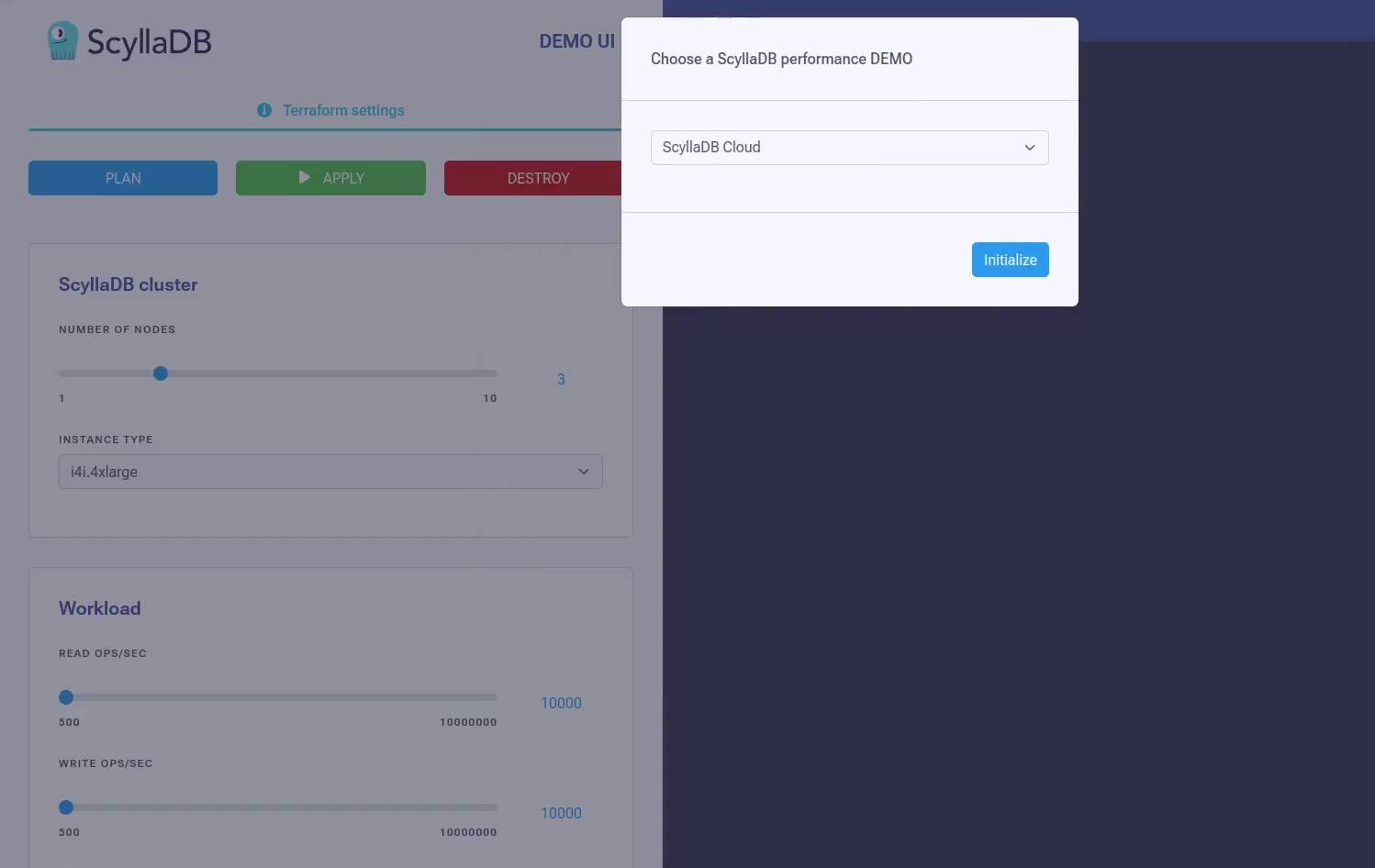
6. Select a demo you want to try (this will run `terraform init` under the hood)
7. (Optional) Configure cluster size and workload settings on the left side
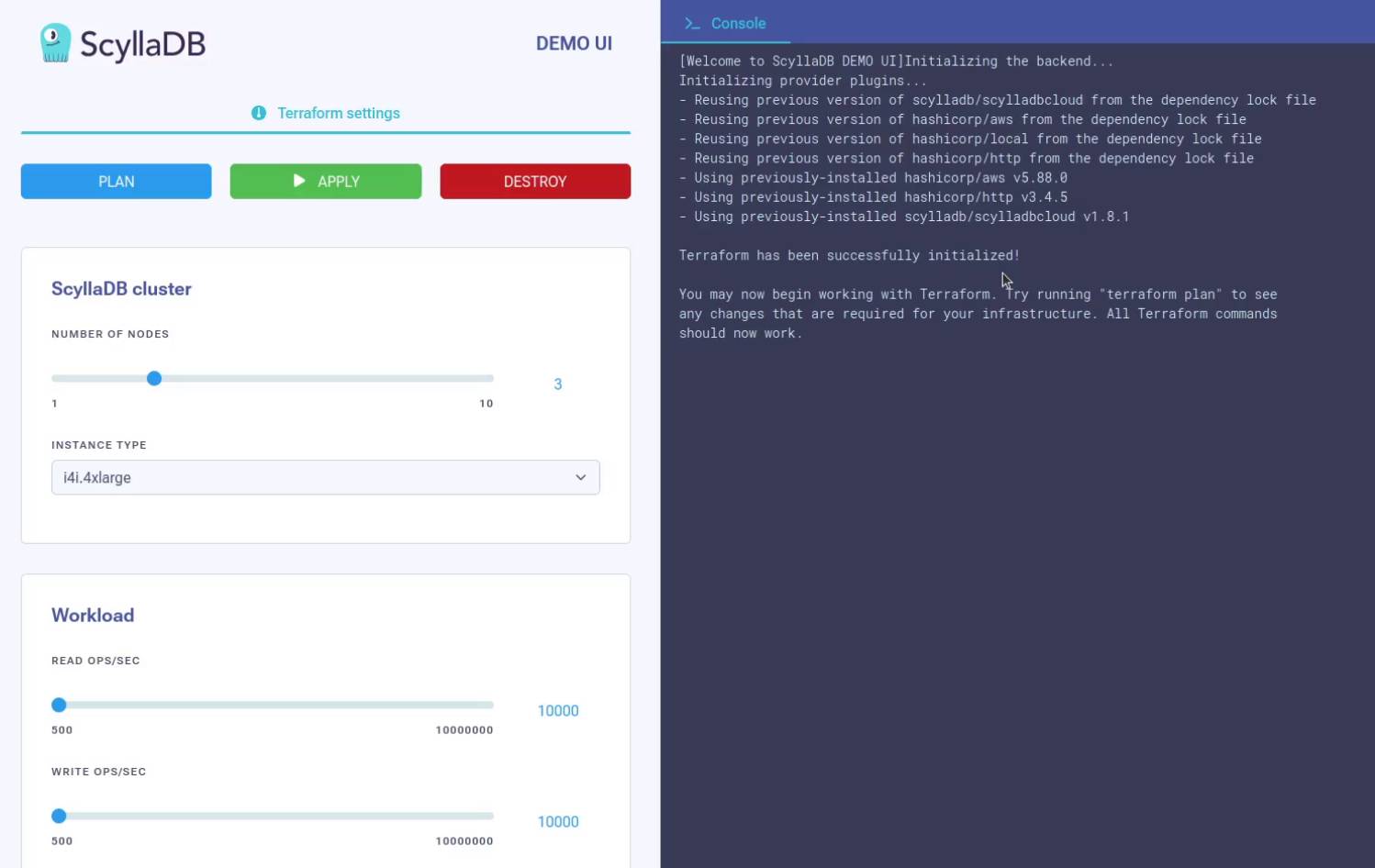
8. Hit `APPLY` (this runs `terraform apply`)
9. Keep an eye on the console output to see when Terraform finishes
10. Click on the different dashboard tabs to monitor the cluster.
11. If you are done, don’t forget to run `DESTROY` to remove infrastructure elements and avoid unnecessary costs.
# getting-started-enterprise.md
# Get started with ScyllaDB Enterprise on AWS
Follow along this video to get started:
Or use the instructions outlined below to set up [AWS EC2](https://aws.amazon.com/ec2/) instances and [ScyllaDB Enterprise](https://www.scylladb.com/product/scylla-enterprise/) and run 1 million ops/sec workload.
## Prerequisites
* AWS account and CLI credentials (more information on acquiring the credentials [here](https://docs.aws.amazon.com/cli/latest/userguide/cli-configure-files.html) and [here](https://docs.aws.amazon.com/cli/latest/userguide/cli-chap-configure.html), for OKTA you can use [gimme-aws-creds](https://github.com/Nike-Inc/gimme-aws-creds))
* Terraform installed on your machine (installation instructions [here](https://developer.hashicorp.com/terraform/tutorials/aws-get-started/install-cli))
### AWS permissions
Make sure that you have sufficient AWS permissions to create the following items:
* VPC
* Subnets
* Security groups
* EC2 instances
## Configure Terraform and set up infrastructure
1. Clone the repository:
```default
git clone https://github.com/scylladb/1m-ops-demo.git
cd 1m-ops-demo/scylladb-enterprise/
```
2. Set the required items in `variables.tf`:
```terraform
# Set the following variables (mandatory)
#
# AWS credentials file
variable "path_to_aws_cred_file" {
description = "AWS credentials location"
type = string
default = "/home/user/.aws/credentials"
}
# AWS credentials file
variable "aws_creds_profile" {
description = "AWS credentials profile"
type = string
default = "DeveloperAccessRole"
}
# SSH private key for EC2 instance access
variable "ssh_private_key" {
description = "SSH private key location for EC2 instance access"
type = string
default = "/home/user/Documents/key.pem"
}
variable "aws_key_pair_name" {
description = "Key pair name in AWS"
type = string
default = "key-pair"
}
variable "aws_region" {
description = "AWS region"
type = string
default = "us-east-2"
}
# Make sure the AMIs are available in your chosen region
# Amazon Machine Image (AMI) ID
variable "monitoring_ami_id" {
description = "AMI ID for the EC2 instance"
type = string
default = "ami-068cf3d51efeb20d6"
}
# Scylla (AMI) ID
variable "scylla_ami_id" {
description = "AMI ID for the ScyllaDB EC2 instance"
type = string
default = "ami-0a4e6d1a9b982b961"
}
# Scylla (AMI) ID for Loader instance
variable "loader_ami_id" {
description = "AMI ID for the EC2 loader instance"
type = string
default = "ami-027fdd99203b5e063"
}
```
3. Run Terraform:
```bash
terraform init
terraform plan
terraform apply
Do you want to perform these actions?
Terraform will perform the actions described above.
Only 'yes' will be accepted to approve.
Enter a value: yes
[...]
Apply complete! Resources: 20 added, 0 changed, 0 destroyed.
Outputs:
monitoring_url = "http://:3000"
scylla_ips = "10.0.0.74,10.0.0.73,10.0.0.145"
scylla_public_ips = "18.222.111.226,18.222.163.223,3.145.73.47"
```
Setting up the infrastructure takes 4+ minutes. Once Terraform is finished, go to the ScyllaDB Monitoring page (Terraform outputs the URL).
After finishing the demo, destroy the infrastructure:
```default
terraform destroy
```
# getting-started.md
# Get started with ScyllaDB Cloud
Follow along this video to get started:
Or use the instructions outlined below to set up [AWS EC2](https://aws.amazon.com/ec2/) instances and [ScyllaDB Cloud](https://cloud.scylladb.com/) and run 1 million ops/sec workload.
## Prerequisites
* AWS account and CLI credentials (more information on acquiring the credentials [here](https://docs.aws.amazon.com/cli/latest/userguide/cli-configure-files.html) and [here](https://docs.aws.amazon.com/cli/latest/userguide/cli-chap-configure.html), for OKTA you can use [gimme-aws-creds](https://github.com/Nike-Inc/gimme-aws-creds))
* ScyllaDB Cloud API token (get your API token [here](https://cloud.docs.scylladb.com/stable/api-docs/api-get-started.html))
* Terraform installed on your machine (installation instructions [here](https://developer.hashicorp.com/terraform/tutorials/aws-get-started/install-cli))
### AWS permissions
Make sure that you have sufficient AWS permissions to create the following items:
* VPC
* Subnets
* Security groups
* EC2 instances (three)
## Configure Terraform and set up infrastructure
1. Clone the repository:
```default
git clone https://github.com/scylladb/scylladb-1m-ops-demo.git
cd scylladb-1m-ops-demo/
```
2. Set the required items in `variables.tf`:
```terraform
#
# Set the following variables (mandatory)
#
# ScyllaDB Cloud API token
variable "scylla_cloud_token" {
description = "ScyllaDB Cloud API token"
type = string
default = "ADD-YOUR-API-TOKEN-HERE"
}
# ScyllaDB Cloud region
variable "scylla_cloud_region" {
description = "ScyllaDB Cloud region of the cluster"
type = string
default = "eu-north-1"
}
# SSH private key for EC2 instance access
variable "ssh_private_key" {
description = "SSH private key location for EC2 instance access"
type = string
default = "/home/user/Documents/your-private-key.pem"
}
variable "aws_key_pair" {
description = "Key pair name in AWS"
type = string
default = "my-key-pair"
}
# AWS credentials file
variable "aws_creds" {
description = "AWS credentials location"
type = string
default = "/home/user/.aws/credentials"
}
```
3. Run Terraform:
```bash
terraform init
terraform plan
terraform apply
Do you want to perform these actions?
Terraform will perform the actions described above.
Only 'yes' will be accepted to approve.
Enter a value: yes
[...]
Apply complete! Resources: 23 added, 0 changed, 0 destroyed.
```
Setting up the infrastructure takes 15+ minutes. Once Terraform is finished it takes another 2-3 minutes to reach 1M ops/sec.
Go to [ScyllaDB Cloud console](https://cloud.scylladb.com/clusters/list), select your newly created cluster `ScyllaDB-Cloud-Demo` and open `Monitoring` to see the workload live:
 After finishing the demo, don’t forget to destroy the infrastructure to avoid unnecessary costs:
```default
terraform destroy
```
